Workspaces and tabs
Organize terminals by project and switch between them without stopping running commands.
Native Linux terminal
Split panes, project profiles, startup tasks and live customization. Written in Rust with GTK 3 and VTE. Run your own shell, and watch commands and logs side by side.
Free and open source (MIT) · built and tested on Ubuntu 24.04 · Linux only
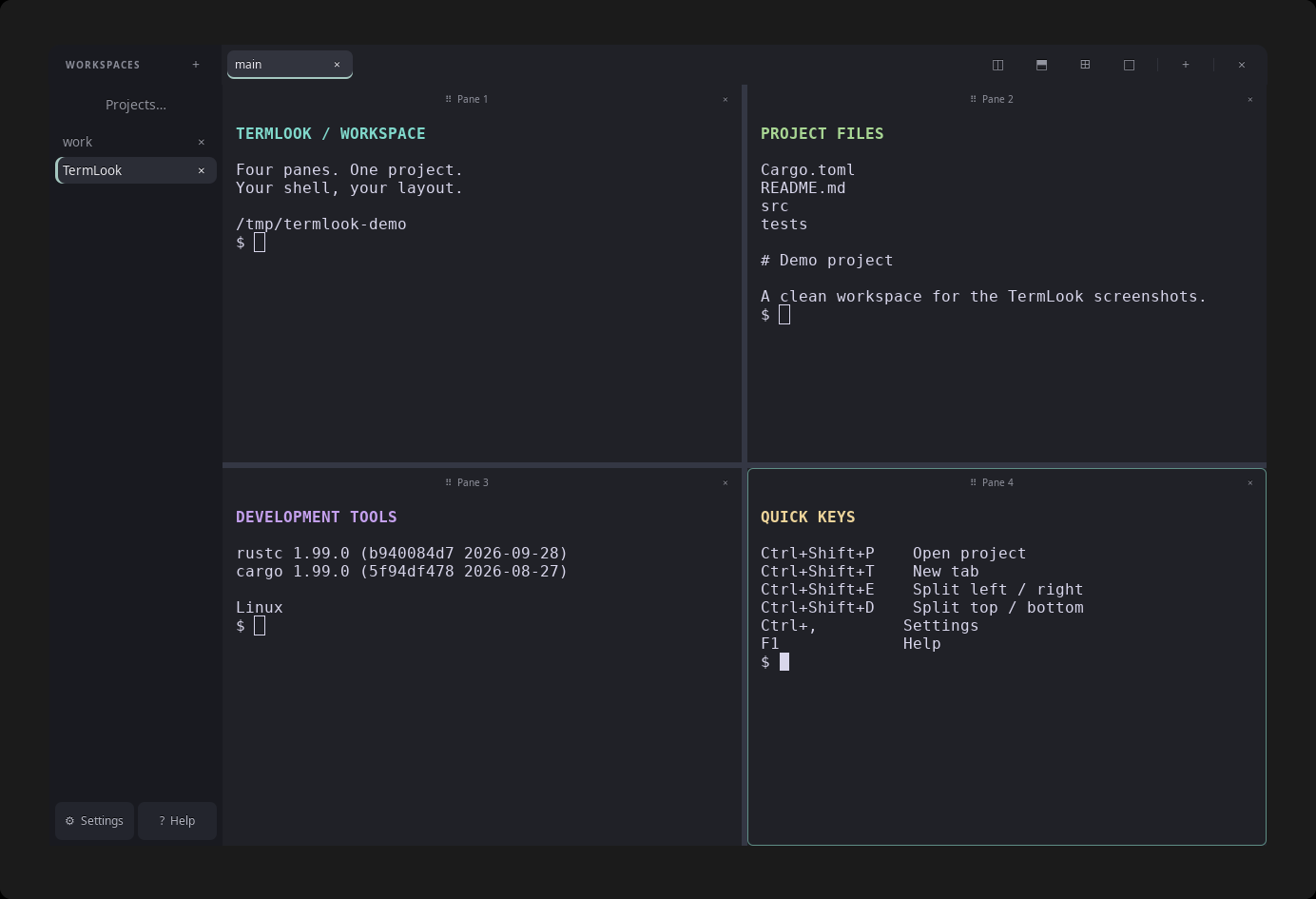
TermLook keeps each project in its own workspace, so you can switch context without stopping a running server or losing your layout.
Organize terminals by project and switch between them without stopping running commands.
Split horizontally or vertically, resize dividers, swap panes by dragging their headers, or focus a single pane.
Choose a folder and a shell, then open, edit or delete the profile from a visible list.
Launch a project's commands in separate tabs with live output, exit status and optional desktop notifications.
Change fonts, colors, cursor style, shortcuts and background images without restarting your shells.
Closing a pane, tab or workspace, or quitting, asks before ending sessions. No more lost work.
Workspace names, tabs, directories and split geometry come back on the next launch.
Rust, GTK 3 and VTE. Lazy terminal creation and coalesced layout writes. No Python runtime required.
Screenshots show a temporary demo project, not personal files.
Save a folder and shell as a project. Open it from Projects… and TermLook creates its workspace. Opening the same project again selects that workspace instead of creating a duplicate.
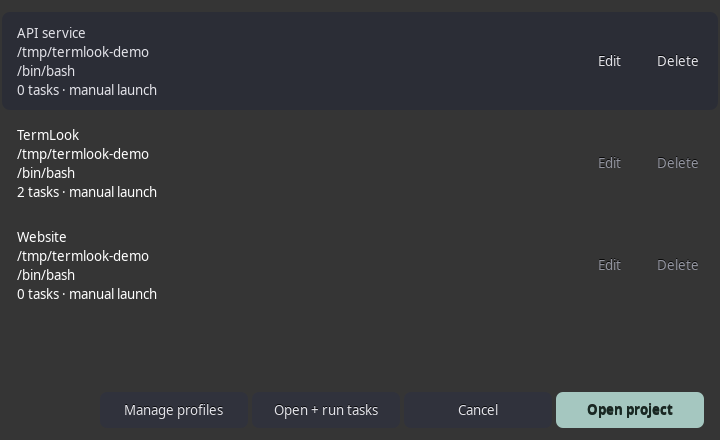
Describe your dev setup once, one Name | command per line, and open the whole project with a click. Each task runs in its own tab, from the project folder.
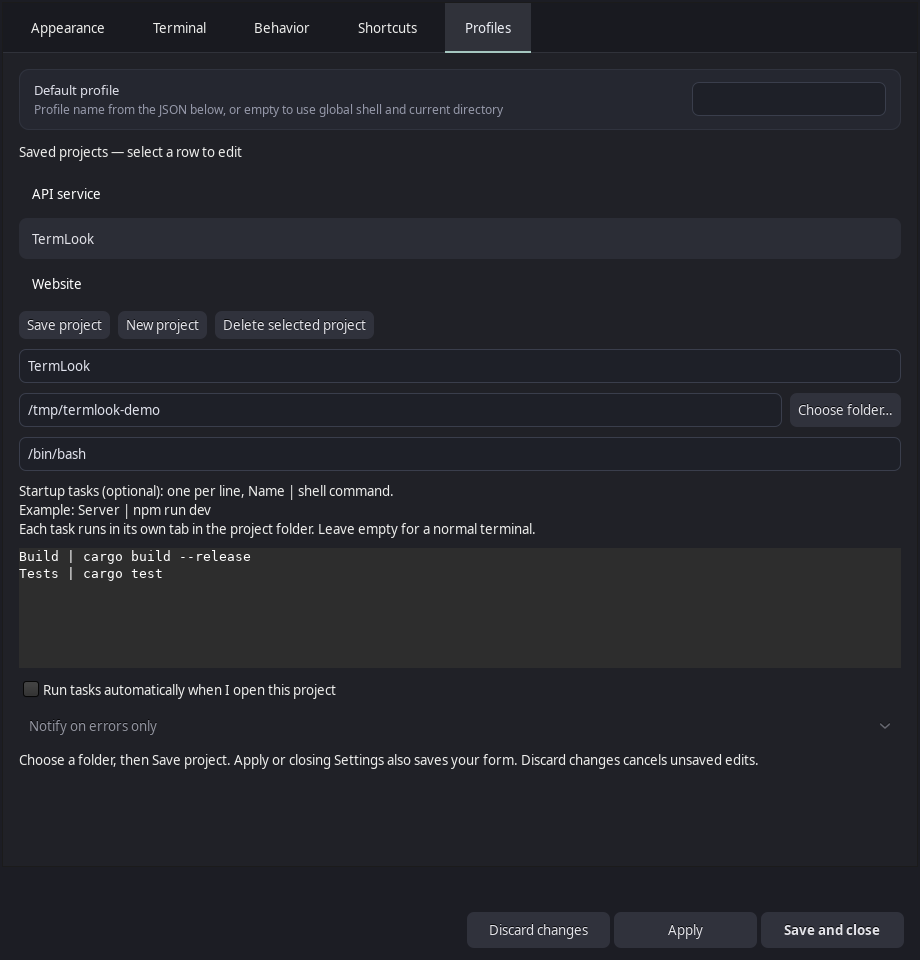
Fonts, text and background colors, the ANSI palette, cursor style, spacing, sidebar width and a background image. Changes apply to existing terminals without interrupting their shells.
theme.css.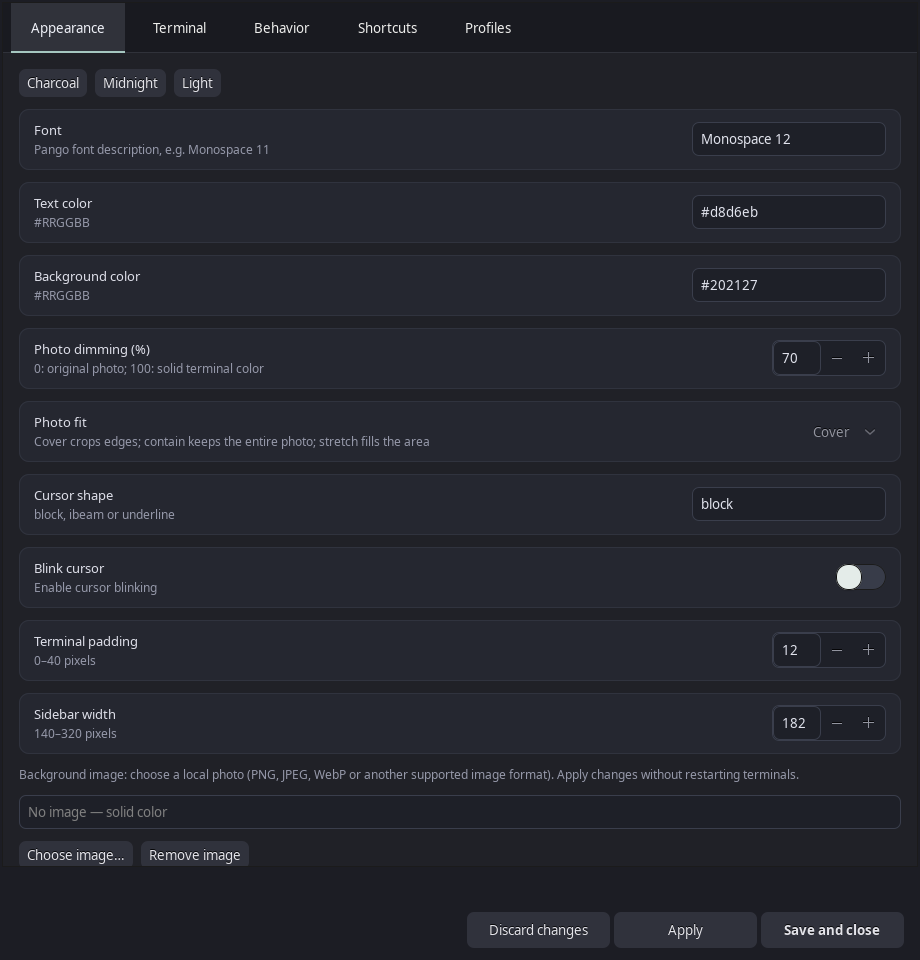
Use the prebuilt Debian package, or build it yourself. Native Windows is not supported.
Download the .deb from the latest release, then install it:
sudo apt install ./termlook_*_amd64.debVerify the download with sha256sum -c SHA256SUMS. Needs Ubuntu 24.04 or newer on amd64.
Needs Rust 1.88+ and the GTK and VTE development libraries:
sudo apt install build-essential pkg-config \
  libgtk-3-dev libvte-2.91-dev librsvg2-common
git clone https://github.com/SyntaxForge-T/Termlook.git
cd Termlook
cargo run --release --lockedFrom a checkout, install the binary and an application-menu entry without root:
./scripts/install_desktop.shInstalls to ~/.local/bin/termlook. Add that folder to your PATH to launch it from other terminals.
Updating: quit the old instance completely before opening the new one. TermLook is a single-instance application, so launching it while an older copy runs just brings that window to the front.
The shortcuts you will use most. Press F1 in the app for the full searchable list.
| Action | Shortcut |
|---|---|
| Open projects | Ctrl+Shift+P |
| New tab / workspace | Ctrl+Shift+T / Ctrl+Shift+N |
| Split left/right / top/bottom | Ctrl+Shift+E / Ctrl+Shift+D |
| Focus pane / show all | Ctrl+Shift+Enter |
| Settings / reload | Ctrl+, / Ctrl+Shift+R |
| Help | F1 |
Ctrl+C keeps its normal role of interrupting the foreground command. See every shortcut.
TermLook is built in the open. Read the guide, report a problem or send a pull request.