 TermLook
 user guide
Everything you need to organize your projects in TermLook. For installation, see the install section.
Getting started
TermLook opens a window with a workspace sidebar on the left and your terminals on the right. Each workspace holds tabs, and each tab holds up to four panes.
- Press Ctrl+Shift+T for a new tab and Ctrl+Shift+N for a new workspace.
- Split a pane left/right with Ctrl+Shift+E or top/bottom with Ctrl+Shift+D.
- Resize dividers by dragging them, and swap panes by dragging their headers.
- Press F1 for quick-start guidance, searchable shortcuts and customization help.
Print the default settings with termlook --print-default-settings.
Projects
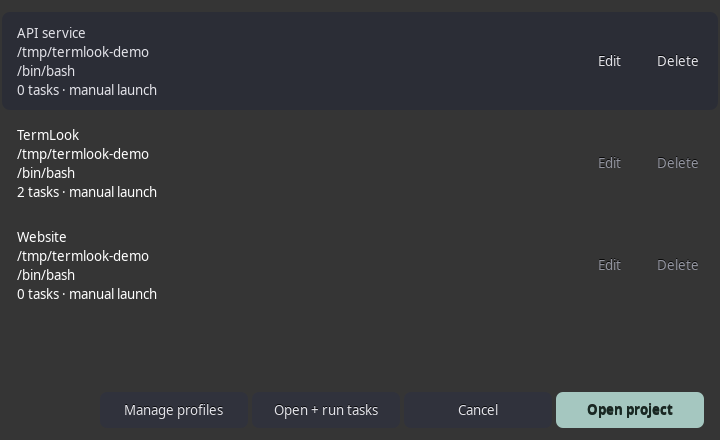
- Open Projects… → Manage profiles, or Settings → Profiles.
- Choose a folder. Enter a project name, or leave it blank to use the folder name.
- Optionally choose a shell executable such as
/bin/bashor/bin/zsh. - Click Save project. Apply, Save and close and the settings window's close button also save the form.
- Open Projects…, select the project and click Open project.
Each profile opens its own workspace. Opening the same project again selects that workspace without creating a duplicate.
Saved profiles appear in a visible list above the settings form. Select a row to edit it, and use New project to create another. Invalid entries keep the settings window open and show an error. Discard changes cancels unsaved edits.
In Projects…, every profile has Edit and Delete buttons. Confirmed deletion is saved immediately. It removes the profile, while its folder, files and running terminals remain. Save or discard an open settings draft before deleting from the project manager.
Startup tasks and logs
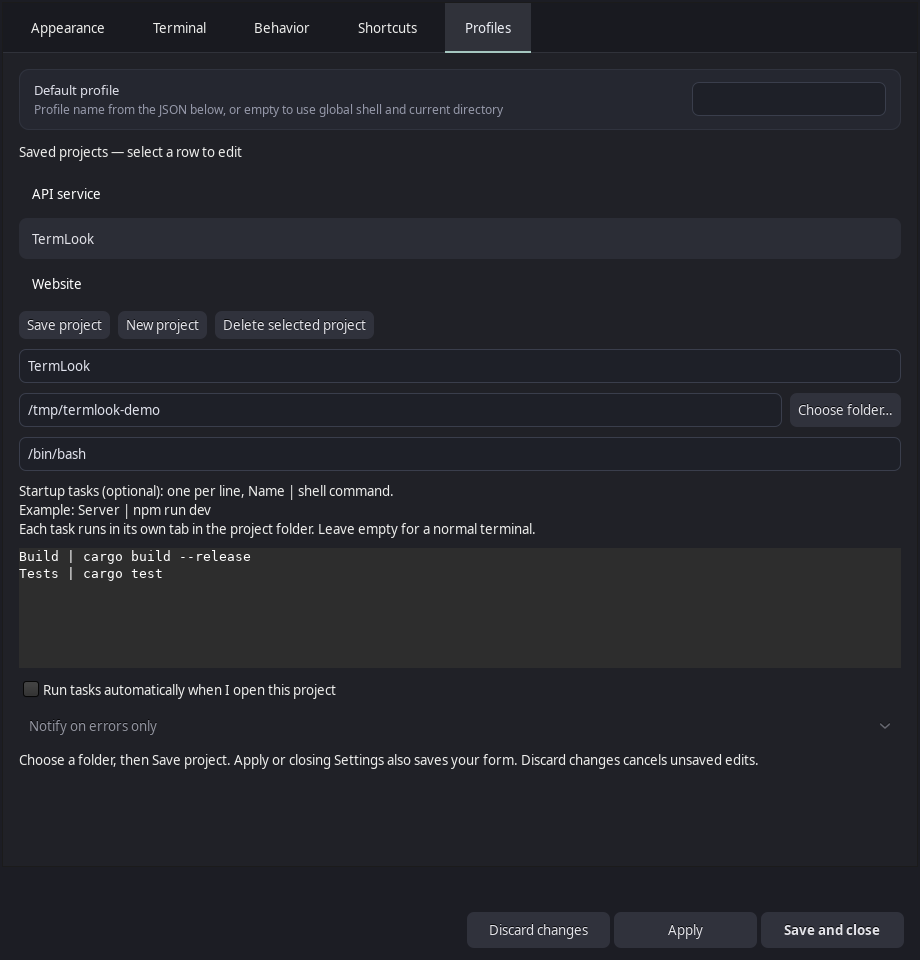
In Settings → Profiles, enter one task per line using Name | command:
Server | npm run dev
Tests | npm test
Logs | tail -f app.log
These are examples; use commands that exist in your project. Leave the task field empty to open a normal terminal. Enable Run tasks automatically when I open this project, then save the profile.
- Each task runs in its own terminal tab, concurrently, from the project folder.
- Standard output and error output appear directly in the terminal.
- Tabs show ▶ while running, ✓ on success, or ✗ with an exit code or termination signal.
- Choose notifications for errors only, every completion, or off.
- Open project launches the template once per workspace during the current app session.
- Open + run tasks reruns a finished template in fresh tabs. It refuses while any template task is still running.
Use Ctrl+C to stop a foreground command, or close its tab with confirmation. Keep servers in the foreground rather than adding &, so their completion status follows the running process. Up to 12 tasks can be saved per profile.
Tasks use the selected shell with -c; interactive shell startup files may not load. Put required environment setup in the command or a project script. Failure status comes from the process exit status, not from matching words in logs. Desktop notifications require a notification service on your desktop.
Customization
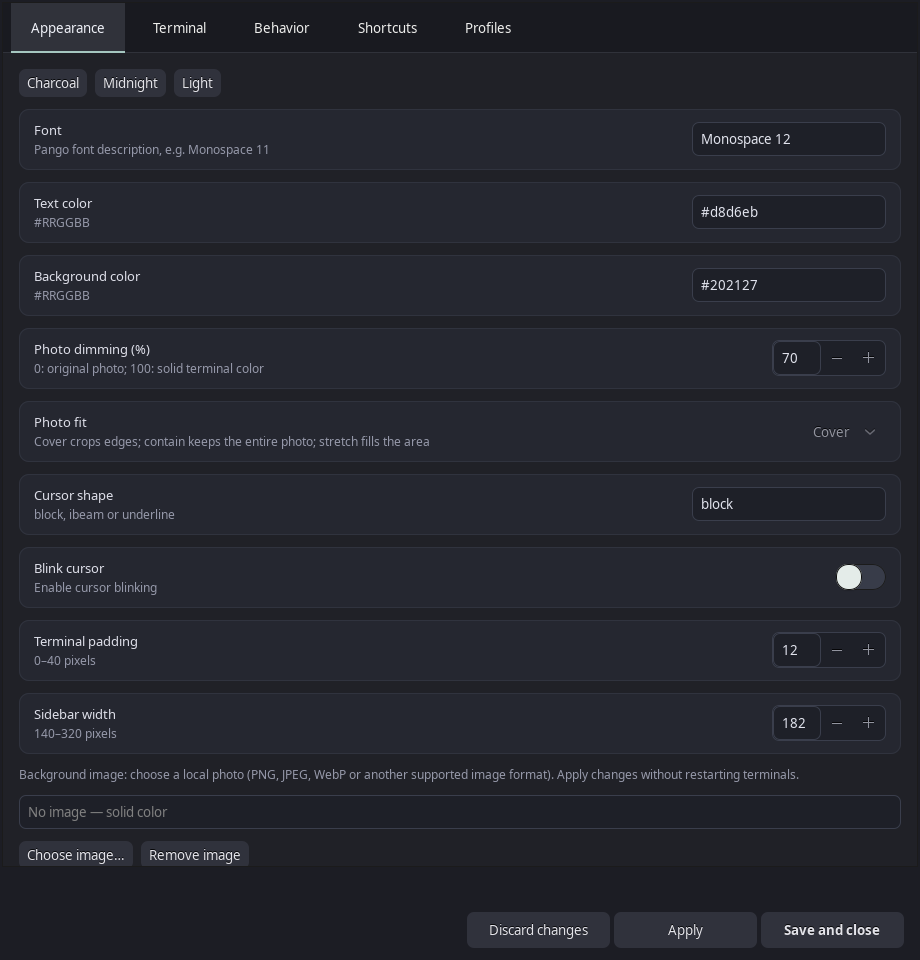
Open Settings with Ctrl+,. Appearance changes apply to existing terminals without interrupting their shells.
| Settings page | What you can change |
|---|---|
| Appearance | Font, text/background colors, ANSI palette, cursor, spacing, sidebar width and background image |
| Terminal | Shell, scrollback, bell and scrolling behavior |
| Behavior | Close-to-tray/minimize behavior and tab close buttons |
| Shortcuts | Application shortcuts; an empty binding disables the action |
| Profiles | Project names, folders, shells, startup tasks and notifications |
For a custom background, select Appearance → Choose image…, choose a local image and adjust dimming and cover, contain or stretch fitting. Keep the image at its selected path. Supported formats depend on your system's image loader; common formats include PNG and JPEG.
Configuration files
Configuration lives in ~/.config/termlook/, or $XDG_CONFIG_HOME/termlook/:
| File | Purpose |
|---|---|
settings.json | Appearance, shortcuts, profiles and tasks |
layout.json | Workspace, tab, directory and pane layout |
theme.css | Optional custom GTK interface styling |
After editing configuration files, press Ctrl+Shift+R to reload. Invalid settings reloads leave the active settings unchanged.
Keyboard shortcuts
| Action | Default shortcut |
|---|---|
| Open projects | Ctrl+Shift+P |
| New tab / workspace | Ctrl+Shift+T / Ctrl+Shift+N |
| Close tab / pane | Ctrl+Shift+W / Ctrl+Shift+X |
| Split left/right / top/bottom | Ctrl+Shift+E / Ctrl+Shift+D |
| Focus pane / show all | Ctrl+Shift+Enter |
| Next / previous tab | Ctrl+Tab / Ctrl+Shift+Tab |
| Copy / paste | Ctrl+Shift+C / Ctrl+Shift+V |
| Rename tab | F2 |
| Settings / reload | Ctrl+, / Ctrl+Shift+R |
| Help | F1 |
| Quit | Ctrl+Shift+Q |
F1 opens quick-start guidance, searchable shortcuts, customization help and Projects, a guide to project creation, tasks, logs and deletion. Tooltips reflect your configured shortcuts. Right-click a terminal for Copy/Paste; Ctrl+C retains its normal role of interrupting the foreground command.
Session behavior
Switching tabs or workspaces keeps opened sessions running. Restored tabs start their shells lazily when selected, while project tasks start when explicitly launched through the project workflow.
Restarting restores the layout, not running processes or scrollback. Logs remain in their tabs until the tab or application closes and are not automatically archived to disk. Open a profile from Projects… after restarting to launch its tasks again.
Directory tracking uses the shell's OSC 7 support; otherwise the initially configured directory is retained.
Background mode
With background mode enabled, closing the main window hides it if an AppIndicator host is available, or minimizes it otherwise. Use Quit to end the application. Optional Ubuntu tray integration:
sudo apt install libayatana-appindicator3-1 gnome-shell-extension-appindicatorEnable the desktop's AppIndicator extension. Disabling background mode makes window close ask before quitting. Native Windows is not supported; see the packaging notes for WSLg.